

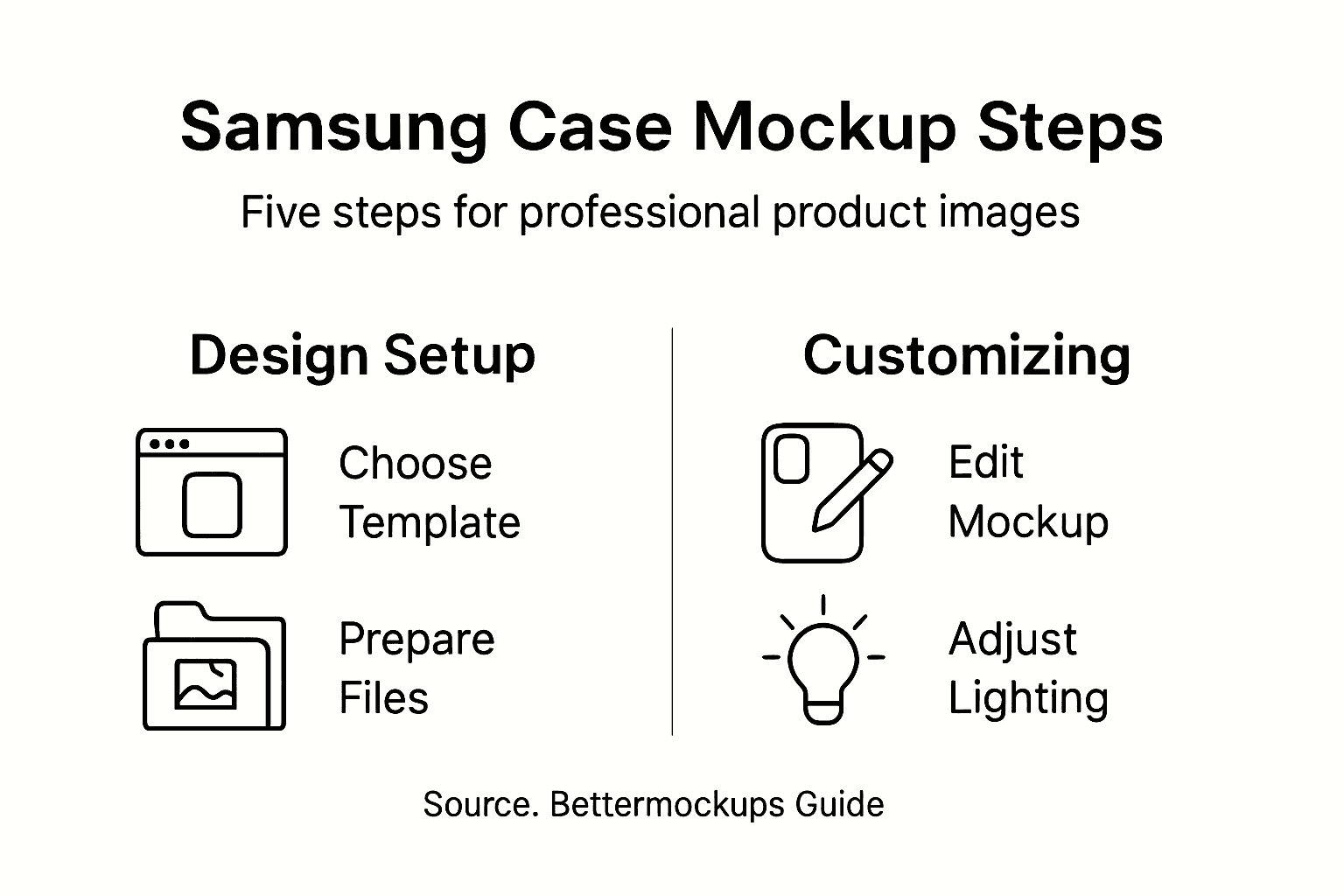
Finding the right mockup template can be the difference between a Samsung phone case that sparks interest and one that gets overlooked. For sellers aiming to stand out in a busy e-commerce marketplace, investing in professional-quality visuals is more than a good idea, it shapes how your brand is seen across global platforms. This guide highlights the crucial steps for selecting and preparing high-resolution mockups that boost product presentation and help you convert more interested shoppers.
Table of Contents
- Step 1: Select Your Samsung Case Mockup Template
- Step 2: Prepare Your Design Files for Mockup Placement
- Step 3: Customize the Mockup Using Psd or Canva Tools
- Step 4: Adjust Lighting and Background for Realism
- Step 5: Review and Export High-Quality Mockup Images
Quick Summary
| Key Point | Explanation |
|---|---|
| 1. Choose the right mockup template | Select templates that align with specific phone models and styles for effective visual representation. |
| 2. Optimize design files meticulously | Prepare high-resolution artwork ensuring clean backgrounds and precise alignment for best results in mockups. |
| 3. Customize using preferred software | Utilize tools like Photoshop for advanced features or Canva for ease to enhance mockup appeal effectively. |
| 4. Adjust lighting and background thoughtfully | Enhance realism by selecting suitable backgrounds and applying natural lighting effects to create depth. |
| 5. Review and export with quality focus | Ensure all mockups are visually coherent and optimized for online display to present professional product images. |
Step 1: Select Your Samsung Case Mockup Template
Selecting the perfect mockup template is crucial for creating professional and compelling product visuals for your Samsung phone case online store. Your mockup choice can dramatically impact how potential customers perceive your product, making it essential to choose wisely.
When exploring Samsung case mockup options, focus on finding templates that match your specific phone model and case style. BetterMockups offers an extensive collection of Samsung Case Mockup Templates designed to showcase your designs professionally. Look for mockups that provide:
- Multiple device angles (front, back, side views)
- High resolution image quality
- Realistic lighting and shadow effects
- Customizable background options
- Compatibility with your specific Samsung model series
Professional mockup selection involves considering the visual storytelling potential of each template. A great mockup doesn’t just display your case - it communicates your brand’s aesthetic and quality. Some mockups offer dynamic scenes like lifestyle shots or urban backgrounds that can make your product more appealing.
Professional mockups transform basic product images into compelling visual narratives that attract and engage potential buyers.
Practical considerations matter just as much as visual appeal. Ensure the mockup template supports your preferred design software like Photoshop or Canva, and check file resolution and format compatibility.
Pro tip: Always download and test a mockup template preview before purchasing to ensure it meets your exact design and marketing requirements.
Step 2: Prepare Your Design Files for Mockup Placement
Designing professional Samsung case mockups requires meticulous file preparation that ensures your artwork looks crisp, clean, and visually compelling. The right preparation can transform an ordinary design into a stunning product representation that captures potential customers’ attention.
To achieve optimal results, you’ll need to focus on several critical aspects of design file preparation. Design file optimization involves creating high-resolution artwork with transparent backgrounds, typically in PNG or PSD formats. Follow these key steps for perfect mockup integration:
- Create artwork at minimum 300 DPI resolution
- Use transparent PNG or layered PSD files
- Match smart object dimensions exactly
- Ensure design elements align precisely with mockup template
- Clean up any pixel imperfections or background artifacts
Professional designers understand that mockup preparation is more than just inserting an image. It’s about crafting a visual narrative that showcases your Samsung case design in its most attractive light. Pay close attention to design proportions, ensuring your artwork scales correctly within the template’s smart object layer.
Precise design preparation transforms a basic image into a compelling product visualization that can significantly boost customer engagement.
Practical design techniques like maintaining consistent layer organization and using vector-based graphics can dramatically improve your mockup quality. Some designers use Adobe Photoshop or similar software to fine-tune their designs before placement.

Pro tip: Always create a backup of your original design file before making mockup-specific modifications to preserve your original artwork.
Step 3: Customize the Mockup Using PSD or Canva Tools
Customizing your Samsung case mockup requires selecting the right design tool that balances professional quality with user-friendly functionality. Whether you choose Adobe Photoshop or Canva’s intuitive mockup tools, the goal remains the same: creating a visually stunning product representation.
For designers using Adobe Photoshop, the process involves working with smart object layers that allow seamless design integration. Follow these essential customization steps:
- Open the PSD mockup template
- Locate the smart object layer
- Double-click the smart object to open design placement window
- Import your Samsung case design
- Adjust design positioning and scaling
- Apply lighting and shadow effects
- Save and export the final mockup
Canva offers a more beginner-friendly approach for those less experienced with advanced design software. Its drag-and-drop interface enables quick mockup customization with minimal technical skills. Design placement becomes as simple as uploading your image and using built-in positioning tools.
Professional mockup customization transforms a basic template into a compelling visual story that showcases your Samsung case design.
Practical customization techniques involve experimenting with background colors, adjusting lighting conditions, and ensuring your design fits perfectly within the mockup template. Pay attention to details like shadow intensity and perspective to create a realistic product representation.
Here’s a quick comparison of popular mockup customization platforms:
| Platform | Skill Level Required | Unique Advantages | Typical Use Cases |
|---|---|---|---|
| Photoshop | Advanced | Precise design control | Professional product visuals |
| Canva | Beginner to Intermediate | Easy drag-and-drop interface | Quick marketing mockups |
| GIMP | Intermediate | Free and open-source | Budget-conscious projects |
| Affinity | Intermediate to Advanced | Low-cost, robust features | Detailed design presentations |
This helps you choose the software that fits your workflow best.
Pro tip: Create multiple mockup variations with different backgrounds and lighting to provide potential customers with a comprehensive view of your Samsung case design.
Step 4: Adjust Lighting and Background for Realism
Creating a professional Samsung case mockup goes beyond simple design placement - it’s about crafting a compelling visual narrative that makes your product look irresistible. Advanced mockup lighting techniques can transform an ordinary image into a stunning product representation that catches potential customers’ eyes.
Mastering background and lighting adjustments requires understanding several key techniques in design software like Photoshop. Here are the critical steps to achieve professional-grade realism:
- Select backgrounds that complement your Samsung case design
- Use natural lighting angles matching real-world scenarios
- Apply subtle shadow and highlight effects
- Adjust layer blending modes for seamless integration
- Experiment with color temperature and saturation
- Ensure consistent light direction across the mockup
Professional designers know that realistic mockup creation involves more than just technical skill. It’s about understanding how light interacts with surfaces, creating depth and texture that makes your Samsung case look tangible and desirable.
Precise lighting and background adjustments can elevate your product mockup from generic to genuinely compelling.
Practical lighting techniques involve carefully manipulating layer opacity, using gradient overlays, and creating soft shadows that make your design feel three-dimensional. Pay attention to subtle details like reflection intensity and edge highlights to enhance the mockup’s professional quality.
Pro tip: Create a reference folder with professional product photography to study realistic lighting and background composition techniques.
Step 5: Review and Export High-Quality Mockup Images
Finalizing your Samsung case mockups requires careful review and strategic image export to ensure your online store presentation looks professional and compelling. Batch exporting techniques can dramatically streamline your workflow and maintain consistent visual quality across multiple product images.
Before exporting, conduct a comprehensive visual review of your mockup images, checking for these critical elements:
- Color accuracy and consistency
- Sharp image resolution
- Realistic lighting and shadows
- Clean background integration
- Design placement precision
- Overall visual coherence
- Mobile and desktop display compatibility
Professional mockup export involves understanding the technical requirements of your online sales platform. Image optimization strategies play a crucial role in balancing visual quality with file performance, ensuring fast loading times and crisp product representations.
High-quality mockup images are your silent sales representatives, communicating product value before a customer reads a single word.
Technical export considerations include selecting appropriate file formats like PNG for transparent backgrounds or JPEG for compressed file sizes. Choose export settings that maintain image sharpness while keeping file sizes manageable for web platforms.
Use this reference for mockup export choices and business impact:
| Export Format | Best For | File Size | Impact on Store |
|---|---|---|---|
| PNG | Transparent backgrounds | Medium to large | Enables flexible design integration |
| JPEG | Simple product photos | Small | Faster page load for customers |
| TIFF | Archival usage | Very large | Not recommended for web stores |
| WebP | Web optimization | Small to medium | Improved mobile performance |
Selecting the right format ensures fast loading and crisp visuals for e-commerce.
Pro tip: Create export presets with predefined settings to maintain consistent image quality and save time during bulk mockup generation.
Bring Your Samsung Case Designs to Life with Professional Mockups
Creating visually stunning Samsung case mockups can be challenging when you need precise design placement, realistic lighting, and high-quality images that truly capture your product’s appeal. This article perfectly highlights how crucial it is to select the right mockup templates, prepare your designs carefully, and customize them with tools like Photoshop or Canva. If you want to eliminate guesswork and elevate your online store visuals, tapping into expert resources makes all the difference.
Discover our exclusive collection of Samsung Case Mockups - Slim & Tough Case Mockups – Bettermockups designed specifically to showcase your phone cases with photorealistic quality and customizable backgrounds.
Don’t settle for generic product images that fail to engage your customers. Visit Bettermockups now to access premium PSD and Canva templates tailored for Samsung cases. Explore our Best Sellers Collection – Bettermockups for trending, high-impact mockups or add animated appeal with Video mockups (Video templates) for Phone Case business. – Bettermockups. Start creating eye-catching mockups today and turn browsers into buyers with visuals that communicate quality and professionalism.
Frequently Asked Questions
How do I choose the right Samsung case mockup template for my online store?
Selecting the right template involves finding options that match your specific phone model and case style. Look for mockups that offer multiple device angles, high resolution, and customizable backgrounds to showcase your designs effectively.
What file format should I use for my Samsung case design when preparing it for a mockup?
For optimal results, create your design as a high-resolution PNG or layered PSD file with a transparent background. This ensures compatibility and a clean look when placed in the mockup template.
How can I customize a Samsung case mockup using Adobe Photoshop?
To customize a mockup in Adobe Photoshop, open the PSD file, locate the smart object layer, and double-click it to import your design. Adjust the design’s position and scaling, applying any necessary lighting and shadow effects before saving the final mockup.
What steps should I take to adjust lighting and background for my Samsung case mockup?
To enhance realism, choose a background that complements your design and use natural lighting angles. Adjust the shadows and highlights to create depth, ensuring consistent lighting across the mockup for the best visual impact.
How can I ensure my final Samsung case mockup images are high quality?
Conduct a thorough review of your mockup images to check for color accuracy, sharp resolution, and clean background integration. After confirming all details, export your images in the appropriate file format, focusing on maintaining visual quality for your online store presentation.


